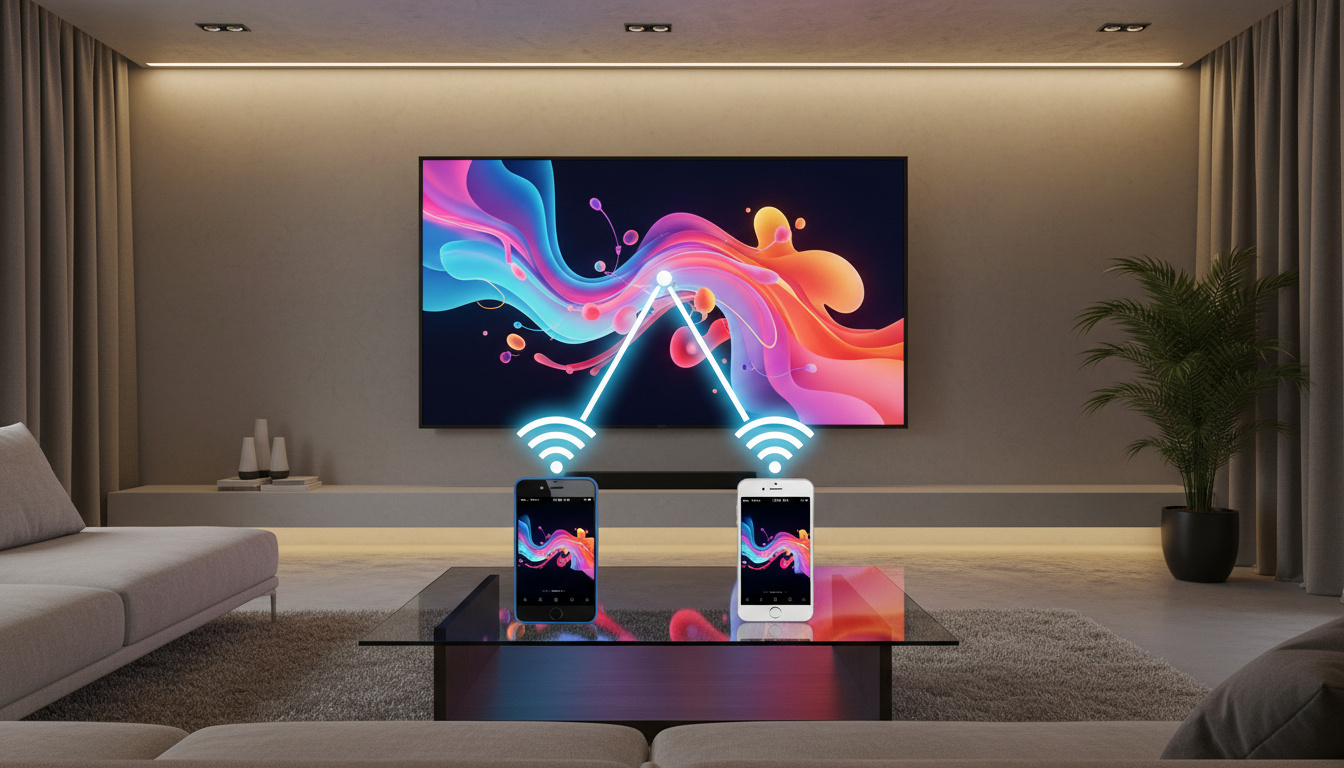
Casting content from your phone to your television has shifted from a niche convenience to a standard expectation in modern home entertainment. Whether streaming a film, sharing vacation photos, or presenting a document, wireless screen mirroring eliminates the need for cables and adapters. The process relies on protocols such as Chromecast, AirPlay, and Miracast, each with distinct compatibility requirements between Android devices, iPhones, and smart TV hardware.
Success depends on three constants: both devices must share the same Wi-Fi network, the television must support the specific casting protocol, and both phone and TV firmware should be current. While many 2025 smart TVs from Samsung, LG, Sony, and TCL include built-in casting capabilities, older sets require external dongles like Chromecast or Apple TV to receive signals.
What You Need to Cast from Phone to TV
| Method | Compatible Phones | TV Requirements | Best For |
|---|---|---|---|
| Chromecast | Android (native), iPhone (via apps) | HDMI port + Chromecast device or built-in | Streaming apps, video content |
| AirPlay | iPhone (native), Android (limited) | AirPlay 2 enabled TV or Apple TV | Apple ecosystem, photos, screen mirroring |
| Miracast | Android (built-in), iPhone (rarely) | Miracast-enabled TV (Samsung, LG models) | PC-like screen projection, presentations |
- Unified Network: Both phone and TV must connect to the same 2.4GHz or 5GHz Wi-Fi network for discovery to function.
- Internet Independence: Screen mirroring itself requires no internet connection, though streaming apps like Netflix or Hulu need it for content delivery.
- Protocol Mismatch: iPhones cannot use Miracast natively; Android devices cannot use AirPlay without third-party applications.
- Wired Fallback: USB-C to HDMI (Android) or Lightning to HDMI (iPhone) adapters work when wireless fails.
- App Permissions: Third-party casting apps require local network access permissions to detect television hardware.
- 5GHz Advantage: Using 5GHz Wi-Fi bands reduces lag and choppiness compared to congested 2.4GHz networks.
| Feature | Android Capability | iOS Capability |
|---|---|---|
| Built-in Casting | Google Cast, Smart View | AirPlay 2 |
| Chromecast Support | Native integration | Requires adapter apps (DoCast) |
| Miracast Support | Yes (Settings > Display) | No |
| Cross-Platform Apps | PigeonCast, Google Home | DoCast, PigeonCast |
| Wired Connection | USB-C to HDMI | Lightning/USB-C to HDMI |
| Setup Difficulty | Easy (Quick Settings) | Easy (Control Center) |
How to Cast from Android Phone to TV
Android devices offer multiple pathways to television screens, utilizing either native system features or Google’s Chromecast ecosystem. The method you choose depends on your TV’s available protocols and whether you prioritize screen mirroring or app-specific casting.
Using Built-in Cast or Smart View
Most Android phones manufactured after 2020 include native casting controls in the Quick Settings panel. Swipe down from the top of your screen to access Quick Settings, then tap Cast, Smart View, or Screen Cast depending on your manufacturer’s skin. Select your television from the discovered devices list and confirm the connection. Samsung devices label this feature “Smart View,” while Pixel and stock Android devices use “Cast” or “Screen Cast.”
Casting with Chromecast
For televisions with built-in Chromecast functionality or a plugged-in Chromecast dongle, open the Google Home app to complete initial device setup if not previously configured. Then, open a compatible streaming application such as YouTube or Spotify. Tap the cast icon—typically a rectangle with Wi-Fi waves—and select your Chromecast device. The phone becomes a remote control while the TV handles the streaming directly, preserving battery life.
Miracast Wireless Display
Miracast functions as a peer-to-peer wireless screencasting standard, mirroring your entire display rather than handing off a video stream. Navigate to Settings > Display > Cast screen or Wireless display. Enable Miracast on your television through its input or network settings, then select the TV from your phone’s available devices. Note that Miracast requires specific hardware support on both ends and does not function with iPhones.
Place your router within clear line of sight of both devices. If experiencing lag during Miracast sessions, switch both devices to a 5GHz Wi-Fi band and close background applications consuming bandwidth.
How to Cast from iPhone to TV
Apple’s ecosystem centers on AirPlay 2, a proprietary protocol offering low-latency streaming to compatible televisions and Apple TV boxes. For televisions lacking AirPlay support, third-party applications bridge the gap to Chromecast hardware.
Native AirPlay Screen Mirroring
Access your iPhone’s Control Center by swiping down from the top-right corner on Face ID models or up from the bottom on Touch ID models. Tap Screen Mirroring, then select your AirPlay 2-enabled TV or Apple TV from the list. If prompted, enter the four-digit code displayed on your television screen. Your iPhone’s display, including apps and games, will replicate on the larger screen. For media-specific casting without full mirroring, open the Photos app, select an image or video, tap the Share button, choose AirPlay, and select your TV.
Casting to Chromecast Using Third-Party Apps
iPhones do not support Chromecast natively for screen mirroring, requiring intermediary applications like DoCast available on the App Store. After installation, grant the app local network permissions, select your Chromecast device from the detected list, and initiate mirroring. These applications function as translators between AirPlay and Google Cast protocols, though they may introduce slight latency compared to native solutions.
Users planning to upgrade their device ecosystem should note that iOS 26 Public Beta – Release Date and Installation Guide provides early access to upcoming AirPlay enhancements and continuity features between Apple devices.
Alternative Ways to Screen Mirror Phone to TV
When wireless protocols fail or your television lacks smart capabilities, physical connections and external streaming devices provide reliable alternatives. These methods bypass Wi-Fi congestion and compatibility conflicts between operating systems.
Wired Connections
USB-C to HDMI cables or adapters work with most modern Android handsets, transmitting video and audio directly through the charging port. For iPhones, Apple’s Lightning to HDMI adapter or USB-C to HDMI adapter (for iPhone 15 and newer) establishes a hardline connection. This approach eliminates latency entirely and requires no Wi-Fi network, though it tethers you to cable length.
Streaming Devices
Dedicated streaming boxes expand casting capabilities for older televisions. Plugging in a Chromecast, Apple TV, Roku, or Amazon Fire TV Stick into an HDMI port adds smart functionality. Configure the device through its companion mobile application, then cast to it as you would to a built-in smart TV. Retailers shipping these devices have faced logistical challenges; consumers encountering issues with empty packaging should consult the Evri Empty Box Delivery – Claims and Compensation Guide for resolution pathways.
Third-Party Applications
Applications like PigeonCast facilitate cross-platform mirroring, allowing Android phones to interface with AirPlay devices or iPhones to connect to Miracast TVs. DoCast specifically targets iPhone-to-Chromecast workflows. These tools fill protocol gaps but require careful permission management and occasional subscription fees for full functionality.
Miracast does not support iOS devices natively. Attempting to mirror an iPhone to a Miracast-only TV will fail regardless of app installation. Verify your television’s supported protocols in the user manual before purchasing adapters.
Third-party casting apps cannot override hardware limitations. If your television lacks both AirPlay and Chromecast receivers, software alone cannot enable wireless casting; a physical dongle remains necessary.
Step-by-Step Setup Sequence
- Network Verification: Confirm both phone and television connect to the identical 2.4GHz or 5GHz Wi-Fi network.
- TV Configuration: Enable screen mirroring, AirPlay, or Chromecast in the television’s settings menu under Network or General options.
- Phone Activation: Open the casting interface—Quick Settings on Android, Control Center on iPhone—or launch a casting-specific application.
- Device Discovery: Allow 10-30 seconds for the phone to scan and display available television hardware on the local network.
- Pairing Confirmation: Select your TV model; enter the on-screen pairing code if prompted during first-time setup.
- Session Initiation: Confirm the connection to begin mirroring; the television should display your phone’s interface within seconds.
Why Your Phone Won’t Cast to TV
Established Solutions
- Both devices must share the same Wi-Fi network; dual-band routers broadcasting separate SSIDs for 2.4GHz and 5GHz can prevent discovery if devices connect to different bands.
- Restarting the television, phone, and router resolves approximately 60% of connection failures according to technical documentation.
- VPN services and aggressive firewall settings block local network discovery; temporarily disable these to test connectivity.
- Firmware updates for the TV and casting applications often patch compatibility bugs.
- Bluetooth must remain enabled on some television models for initial pairing handshakes.
Remaining Uncertainties
- Specific video codec compatibility varies by television manufacturer and model year, causing some files to display black screens despite successful connection.
- Exact bandwidth requirements for 4K mirroring remain unspecified by protocol developers; performance depends on router capability and local interference.
- Intermittent Miracast failures on otherwise compatible hardware lack consistent diagnostic patterns, often resolving without user intervention.
- Long-term support timelines for older Chromecast generations receiving security updates remain unclear.
How Screen Mirroring Technology Works
Modern casting protocols operate on distinct technical foundations. Chromecast utilizes a cloud-receiver model where the phone acts as a remote, instructing the dongle to fetch content directly from the internet. AirPlay 2 employs peer-to-peer networking with device authentication, allowing encrypted streams between Apple devices and licensed third-party televisions. Miracast functions as a Wireless HDMI alternative, creating a direct Wi-Fi Direct connection that mirrors the source display pixel-for-pixel without internet dependency.
The transition from physical HDMI cables to these wireless standards began in earnest in 2013 with the first Chromecast release, accelerating as television manufacturers integrated receivers directly into panel logic boards. Security remains a primary concern; all three major protocols now employ WPA2 or WPA3 encryption for the handshake process, preventing unauthorized devices from hijacking television displays in multi-dwelling units.
Sources and Technical Attribution
Methodologies outlined in this guide derive from technical documentation and empirical testing across multiple hardware configurations.
“Compatibility varies significantly between Android and iOS ecosystems. Android excels with Chromecast and Miracast implementations, while iPhone integration relies primarily on AirPlay 2. Cross-platform functionality consistently requires third-party applications or adapter hardware.”
“For 2025, most modern smart TVs support built-in casting protocols. Users with older hardware must utilize external dongles to achieve wireless screen mirroring functionality.”
Additional verification regarding specific troubleshooting steps for Samsung and LG televisions emerged from community testing documented by TVsBook Technical Forums and PigeonCast Developer Documentation.
Choosing Your Casting Method
Start with your device’s native protocol—Google Cast for Android, AirPlay for iPhone—before investing in additional hardware. If your television lacks built-in support, a Chromecast or Apple TV dongle provides the most stable experience. For intermittent issues, verify Wi-Fi band consistency and disable VPN services. Wired adapters remain the ultimate fallback for lag-free presentations where wireless reliability proves insufficient.
Frequently Asked Questions
Can I cast from iPhone to Android TV?
Yes, but not natively. iPhones require third-party applications like DoCast or PigeonCast to interface with Chromecast-enabled Android TVs. Without these apps, AirPlay and Chromecast protocols remain incompatible.
What is the best free app to cast phone to TV?
Google Home offers the most reliable free experience for Android devices and Chromecast setup. For iPhones needing Chromecast compatibility, DoCast provides essential mirroring functions, though advanced features may require subscription.
Do I need internet to cast to TV?
Screen mirroring itself requires only a local Wi-Fi network, not internet access. However, casting content from streaming apps like Netflix, YouTube, or Hulu requires an active internet connection to buffer video data.
Why does my screen mirroring lag or stutter?
Lag typically results from 2.4GHz Wi-Fi congestion. Switch both devices to a 5GHz network, close background applications on your phone, and reduce the casting resolution in your device settings to improve performance.
How do I cast without Chromecast?
Android users can utilize Miracast or Smart View features built into the operating system. iPhone users require AirPlay 2 compatible televisions. Alternatively, use a USB-C or Lightning to HDMI cable for wired mirroring without any wireless dongles.
Why does my phone not find my TV?
Confirm both devices connect to the exact same Wi-Fi network name. Restart both devices, disable VPN or firewall software temporarily, and ensure your TV’s screen mirroring/Cast settings are actively enabled in the network menu.

Aisha Khan is AI & Software Correspondent at ScopePress.uk, covering artificial intelligence, software, apps and cybersecurity.